
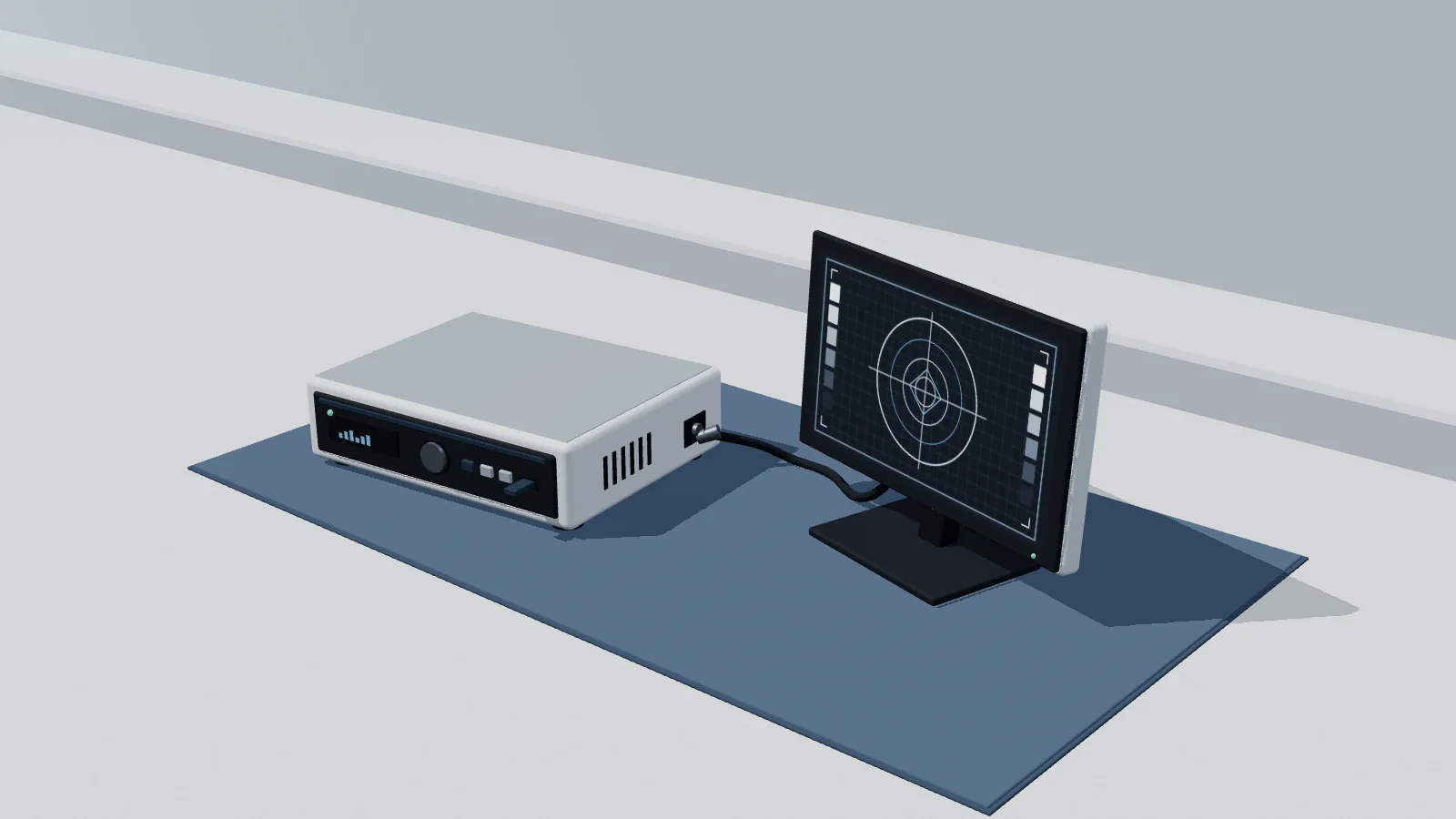
The operating room (OR) team saw live endoscopic video during the procedure. Afterward, staff cannot find a playable recording on the USB drive or in the archive where they expected it. The live picture tells clinical engineering that the observed display path carried video at the time. The service question is which part of the recording path needs investigation.
During an authorized test with the equipment out of clinical use, follow one recognizable moving test clip. Record which display showed the live target, whether the recorder received the intended input and responded to the usual trigger, and whether the same clip plays from the intended destination after the applicable close and write steps. Check internal playback separately if the setup supports it. If the clip plays locally but is missing or unreadable at the destination, route the destination or playback discrepancy and record exactly what you observed. Use fabricated test data and preserve existing clinical media under facility policy.
What a live image tells you
A live surgical display establishes that the observed route carried the picture at the time of the check. To verify receipt at the recorder, look for the same test target on a preview or input display that the manufacturer identifies as showing the active recording channel. Log the port or channel if known, and leave input receipt unverified if you only saw the cart display or a loop-through feed.
Pages 21–23 of the PINPOINT PC9000 manual show a direct monitor connection and a separate recorder-routed arrangement for viewing recorder controls and status. Stryker also calls for distinguishing live video from recorded playback when the display is routed through a recorder. Stryker PINPOINT PC9000 Operator’s Manual (4-0002428 Rev. K)
The UR-4MD manual illustrates two monitor connections on page 14. In one arrangement the monitor can still display the source image while the recorder is off. This is why recording the installed route matters before interpreting a good picture on the monitor. TEAC UR-4MD Digital Video Recorder Instructions for Use (D01226420G)
Start the out-of-use check with a nonclinical target, such as a moving geometric test pattern. Log the source, the physical monitor and its feed, and the recorder input selected or indicated in that setup. Investigate damage, illumination, or image clarity at the endoscope through the separate optical assessment. Rigid Endoscope Damage: Repair Assessment and Image Checks
Make a deliberate change in the test image, such as reversing the target at a chosen moment. Watch for that change when you make it. This gives you a way to distinguish the live test feed from a frozen frame or earlier playback. Keep a second recognizable cue near the end of the clip so you can check whether playback includes the end of the test.
What the recorder showed when recording was requested
Once the target is visible, record which control requested recording. That can be the recorder panel, a processor or camera-head control, or an external switch in a supported integration. Note the state at the processor and at the recorder, including whether an indication persisted, disappeared, or was out of view. A trigger attempt and the recorder’s observed state are separate entries in the ticket.
On page 111, Stryker’s PC9000 Rev. K manual describes two responses to a recording request at the video processor.
Recorder-unavailable icon. The manual shows this indication when recording is requested on a processor that has not been configured for it.
Brief image pause without recording confirmation. The manual describes this possible response when the processor is configured for recording and the recorder is improperly connected or unresponsive.
The PINPOINT manual (pp. 59–63) also says that a brief record icon with the TEAC UR-4MD may indicate that the recorder is not selected. PINPOINT camera and Tools menu control are unavailable with MediCapture recorders in the documented setup. The UR-4MD manual (pp. 19–20) distinguishes recording, paused and stopped states. Page 56 describes a specific exception after files on a previously used USB drive have been added or deleted on a computer. On the next recording attempt, the icon and timer can be temporarily absent while video is being recorded. Keep an uncertain indication open in the ticket and check the matching clip where authorized.
Record the processor and recorder models, asset identifiers, installed firmware, and applicable instructions for the equipment in front of you. The PINPOINT example is from the January 2021 English international PC9000 manual. The TEAC example is from D01226420G, which applies to the UR-4MD with firmware 3.05 or higher per page 8. Keep the approved cart configuration during triage. Route any proposed cabling, setup, or integration changes to qualified staff.
Where the test clip actually plays
A record indicator reports a device state and a filename shows that a listing exists. Verify the actual result by selecting the intended playback source and opening the matching test clip. Record the source the player reports, including the selected drive or approved network destination, because the recorder may still be showing its local copy.
The UR-4MD manual separates internal recording from configured USB or network destinations (pp. 19–20). For USB, the manual explains that writing can continue after closing the session and directs users to verify playback from the selected USB device before disconnecting it (pp. 22–24, 28). Follow the applicable close, completion, and media-handling instructions for the installed device. Treat a completed close or write indicator as evidence for that step and document playback separately.
On the UR-4MD, an external USB recording stops if the drive fills, while internal recording can continue if the internal drive still has room. The USB copy may therefore be shorter than the internal one. A split result warrants checking the intended destination, with full media recorded as a suspected cause only when there is evidence for it. UR-4MD Medical Imaging Recorder FAQ
For a network destination, confirm that the installed workflow is configured to receive video. One model-specific example is the UR-4MD DICOM option, which forwards still images and does not support DICOM video (p. 53). For an approved video workflow, match the clip by its test identifier, time and visible cues. Play the short clip through its final cue and log the duration observed. If a listed clip opens but ends early or lacks the expected motion, describe the playback discrepancy even if the opening frames look right.
If playback at the receiving system requires access outside clinical engineering’s scope, record the destination as “not checked” and hand off the test identifier, time and expected destination to its authorized owner. Keep the local playback result in its own field so the next person can see which part of the test was completed.
| Observed Symptom Pattern | What Is Established | What Remains Unverified | Ticket Routing Target |
|---|---|---|---|
| Moving target visible on the primary monitor with recorder input unverified | The observed monitor path displayed the test target | Receipt at the active recorder input or channel | Clinical engineering or OR integration |
| Matching test image observed at the recorder input with trigger response unconfirmed | The test image was observed at that input | Recording state and whether the intended control worked | Clinical engineering or manufacturer integration support |
| Matching clip plays locally and is missing at the checked destination | The recorder stored playable video locally for this test | Delivery to the intended destination and the reason the clip is missing | USB media or network destination owner |
| Matching clip is listed at the destination but fails to play as expected | A listing exists at the checked destination | Whether the copy is readable and complete | Storage or playback owner with clinical engineering |
A checklist for the service ticket
Build the work order around one synthetic clip. Mark the stages that are confirmed or unconfirmed. On each playback row, record whether the clip played as expected, was missing after an authorized search, was unreadable in the approved player, or had incomplete playback. Use “not checked” for unavailable checks and “not applicable” if the installation has no such path. If another team completes a check later, add its time, result, and owner to the same test record.
Use a fabricated case identifier and a facility-approved destination for the bench test. Keep clinical footage, screen photos, filenames, folder listings, metadata, and audio out of the general service ticket. The UR-4MD manual shows that folder listings can contain patient identifiers (pp. 34–36), independently of what appears on the monitor. Under U.S. HIPAA Safe Harbor, a covered entity removes specified identifiers and must have no actual knowledge that the remaining information could identify the person, alone or in combination with other information. Leave any real-media access or disclosure decision to the facility’s authorized process. 45 CFR § 164.514(a)–(b)
| Verification Stage | Expected Result | Observation Status | Evidence Reference | Disposition & Next Owner |
|---|---|---|---|---|
| Installed equipment and firmware | Identify the tested setup against the approved configuration | Confirmed / Unconfirmed / Not checked | Processor and recorder asset IDs, models, firmware, and intended destination | Route any configuration discrepancy to the clinical engineering lead |
| Live display and recorder input | Verify the moving target on the documented display route and look for separate input evidence | Record a separate status for each | Signal source, monitor feed, recorder input or channel, and the indication observed | Send an absent or unverified recorder input to clinical engineering or OR integration |
| Trigger and recorder response | Observe the response to the intended supported trigger | Confirmed / Unconfirmed / Not checked | Trigger used and exact status on the displays or indicators available | Route unconfirmed control or setup to clinical engineering or manufacturer integration support |
| Session close and write completion | Observe the applicable close and write-completion indications | Confirmed / Unconfirmed / Not checked | Synthetic ID, start and stop times with time zone, and the completion indication observed | Leave media in place if a write is still active and route an unresolved state |
| Internal storage playback | Locate and play the matching clip from internal storage where available | Playback result or reason unavailable | Clip ID, selected local source, player, observed duration and motion, or exact error | Route a missing or unreadable local copy to clinical engineering |
| Intended destination playback | Locate and play the matching clip from the approved destination | Playback result or reason unavailable | Selected destination, player, observed duration and motion, or exact error | Route a destination gap to the applicable media, storage, or integration owner |
Put the observations in the computerized maintenance management system (CMMS) work order and identify the next owner and the check they need to complete. For more on work-order fields and release documentation, see Medical Equipment Service Records: What a Work Order Must Contain.
When the service ticket needs escalation
A brief test supports the input, trigger, destination and duration actually checked. It leaves other channels, long recordings, alternate media, and intermittent failures open. If the original symptom does not recur, write “not reproduced” and record the configuration and result. A new test clip answers a current service question. The facility’s authorized incident and media process handles any search for an earlier clinical recording.
Preserve existing recordings. Leave formatting, deletion, firmware changes, retention changes, and enclosure access out of first-line triage. Page 18 of the UR-4MD manual warns that formatting erases the selected medium. Follow the installed device’s approved instructions for handling media and keep USB devices connected during active writes.
The checklist supports triage and handoff. After authorized corrective work, follow the facility’s return-to-service process and the applicable manufacturer instructions. When a Repair Is Major: Return-to-Service Testing After Corrective Work
Sources
PINPOINT Endoscopic Fluorescence Imaging System PC9000 Operator’s Manual, 4-0002428 Rev. K (Stryker / Novadaq Technologies ULC, January 2021 English international edition, pp. 21–23, 59–63, and p. 111 Figure 64).
UR-4MD Digital Video Recorder Instructions for Use, D01226420G (TEAC Corporation, firmware 3.05 or higher per p. 8, pp. 14, 18–24, 28, 34–36, 53 and 56).
UR-4MD Medical Imaging Recorder FAQ (TEAC Corporation, full-USB behavior, internal recording and playback source).
45 CFR § 164.514, Other Requirements Relating to Uses and Disclosures of Protected Health Information (U.S. Department of Health and Human Services, via U.S. Government Publishing Office, October 1, 2025 annual edition, HIPAA Privacy Rule de-identification standard).